
Folders Matter To Claude Code
Summary
Code written using Claude Code is only as good as the instructions Claude first reads. But where you keep the instructions also matters, and keeping them only once is important. A flat folder structure means Claude knows not only where things belong but also where the project stands. You achieve the best results by writing functional specifications first before building anything. You and Claude work together to stress test ideas in conversation, which helps you avoid major problems before you write a single line of code. I work this way because I want my code to be maintainable and usable.
So I made a mistake. When I first started using Claude Code, I didn’t think about the folder structures it might need.
I didn’t appreciate how much the folders mattered, nor the sheer number of .md files they would end up holding. That made for two errors straight away, and together those two errors added up to a much harder time using Claude.
I’m going to show you how to set up your folders so you don’t waste as much time as I did. At the end, there’s a printable guide that summarises what I did.
First, what is an .md file?
The two-letter extension .md stands for Markdown, which is a simple way to format plain text.
A hash sign at the start of a line makes a heading, a hyphen makes a bullet, and a link is created by placing the words you want to make into a link within square brackets, followed by the address in round brackets, resulting in a clickable link. You can write Markdown in any text editor.
The .md file that matters most is called CLAUDE.md. Claude Code reads it at the start of every session and uses it as the basis for instructions about the project and your working style. Where your CLAUDE.md files sit decides what Claude knows, which is why the folder structure is important.
Why I stopped sorting projects by type
Some articles, and indeed Claude himself, might advise you to set up a hierarchical folder structure: a folder for WordPress, with one inside it for websites and another for plugins, and so on down. That’s what Claude suggested I did. But in my case it turned out to be a disaster. Why?
When you start Claude Code in a folder for Project A, it reads the CLAUDE.md in that folder and every CLAUDE.md in the folders above it. So in a tree sorted by type, the only way to share a rule is to put it in a folder above every project that needs it. That works as long as every project is only one kind of thing.
OLL! (short for Ooh La Langue) is the project I’m working on at the time of writing. It centres on French lessons built around graded stories, from beginner to advanced. But it is also several things at once. It comprises two WordPress websites, ten WordPress plugins (and counting), plus a desktop app that runs on my Mac.
Sorted by type, it ends up scattered across three branches of the tree, and the rules its various parts share have no specific place to live. So you copy them into each branch, and the copies drift apart. If I fix a rule in one copy the others are out of sync.
A library, and imports
Another way is to forget the strict folder hierarchy and use a flatter folder structure that is easier to handle.
The import statement makes this approach possible. A line in a CLAUDE.md file made of @ followed by a file path pulls that file in. So rather than managing large CLAUDE.md files full of instructions, I write each rule once, in one file dedicated to that type of rule, and keep all those files in one folder I call the library.
Every CLAUDE.md file imports the rules it needs, one @ line per file. When you change a rule in the library, every project that imports it gets the new version the next time a session starts, because there is only one copy to change.
In fairness, imports would also work in a tree folder structure sorted by type. But once you decide to even have a library folder where all the rules live, the project folders no longer need to be hierarchical.
Every project then sits at the same depth, so their import lines are identical, and I never have to struggle with which category a project belongs in. So mostly, I lay my projects out flat, side by side.
But my layout isn’t completely flat. In two places, a folder above shares its rules with the projects inside it, and I’ll explain both of these cases later.
How I set it up
I keep a single folder called AI Developer, and in it go all my projects, whatever they are. In my case, they could be WordPress sites, WordPress plugins or desktop applications. Inside it sit one file and three subfolders.
The house rules file
The house rules file is the top-level CLAUDE.md. That means it includes anything that applies to every project I work on.
Every project sits inside AI Developer, so Claude reads this file regardless of which project I open. It sets out my general working style with rules like :
- use British English
- avoid hedging
- push back with evidence
- never invent anything
- never write code unless you have my explicit permission to do so
It also sets out how a session starts and ends, and it forbids Claude to change any .md file without showing me the exact change and getting my agreement. This is the first of the two places where a folder above shares its rules.
Note that you could keep house rules in a personal CLAUDE.md instead, in a hidden folder called .claude in your machine’s home folder, and they would apply to every project on your computer. But I dislike hidden files, so mine live in AI Developer.
The three folders
library
My rules for each kind of work, one file per kind. So far in my case, that’s wordpress-site-build-rules.md, wordpress-css-rules.md, wordpress-acf-rules.md and wordpress-mega-menu-rules.md. A project only gets a library file if its CLAUDE.md imports it.
projects
One folder per project, all side by side. A website project is named after its domain. Something bigger, made of several projects, gets one folder with each part inside it as a full project of its own. More on that below.
references
Links and notes for me, useful to any project. At the moment it’s a text file listing a few sites for design ideas and one for testing colours. Claude doesn’t read them unless I ask.
Inside each project
Every project gets the same five subfolders, plus any extra folders for the code itself.
Specs
These are the functional specifications (funky specs), which I explain below. They are the most important part of the process when writing code with AI.
Assets
These tend to be image files such as logos, decorative images, and SVG icons.
References
Any document that helps me with this project. Ancillary information usually.
Backups
Dated copies Claude takes before he changes a file.
Handovers
Sometimes Claude makes files for me to use elsewhere. He will put those files here.
My house rules list the five folders detailed above and what goes in each, so Claude knows where things belong. And loose in the project folder itself are these .md files.
CLAUDE.md
What the project is, anything only it needs, and its @ lines.
project-diary.md
This is where I write my concerns and hopes for the project. Claude reads it at the start of every session and asks me about it. It can lead to useful discussion about what to do next.
state.md
This is a short account of where the project stands now. It is always rewritten at the end of each session so that anything no longer true is removed.
lessons.md
A dated list of the main mistakes made during the session is added to this file, so the same mistake isn’t made twice.
audit-trail.md
A dated record of every significant event that happened on the project.
holes.md
As we code or reason our way through the project, this file records any functionality gaps found in the specs. Each one is put to me as a question with a suggested fix. I then either agree to it or suggest a better alternative solution.
The files work because CLAUDE.md tells Claude Code what to do with them. At the start of a session, Claude reads the project diary, the state and the lessons, then tells me what he thinks we should tackle and why.
When I say “close the session”, Claude proposes new updates for lessons.md and audit-trail.md plus a rewritten state.md file. He shows me everything and waits for me to agree before updating anything.
Funky specs
“Funky spec” is my name for a functional specification. I basically outline what to build so everything is thought out and agreed upon before a line of code is written.
For example, a WordPress plugin gets a funky spec map, which is the whole plugin in one document (what it is, its modules, its data and its build rules), and then one funky spec per module.
When testing finds a bug, the fix goes into the spec and the code, so they stay in sync.
Simple, clean CLAUDE.md files
Each project’s own CLAUDE.md now only has to say what the project is and anything specific to it. Then it lists the library files the project needs, one @ line for each. The CLAUDE.md for a small bakery website would read something like this :
# CLAUDE.md : bluebell-bakery.com

A small bakery website, built in Bricks with ACF.
One mega menu. No blog.

@../../library/wordpress-site-build-rules.md
@../../library/wordpress-css-rules.md
@../../library/wordpress-acf-rules.md
@../../library/wordpress-mega-menu-rules.md
Each ../ climbs one folder: from the bakery’s folder up to projects, then up to AI Developer, and from there down into the library. A plugin that needs only my CSS rules has one @ line. A desktop app has none, because nothing in my library currently addresses desktop apps, although that may change.
Bigger projects
OLL! comes in two halves: OLL! Tools, the public site where learners use the lessons, and OLL! Works, the private workshop where the lessons are made.
Breaking this down a bit, OLL! Works gets one folder, oll-works, with its four parts inside it: two plugins, the desktop app and the website. Each part is a full project, with its own CLAUDE.md, diary, state, lessons, audit trail and holes, plus its specs and folders.
The top-level project folder oll-works has its own CLAUDE.md that notes anything common to all the OLL! component sub-projects. Every sub-project reads it. That’s the second place where my layout is not completely flat.
The parts sit one folder deeper than an ordinary project, so their @ lines climb one folder more: @../../../library/ rather than @../../library/.
Before you copy this
The path starts at the CLAUDE.md
An @ path is worked out from the folder of the CLAUDE.md that holds it, not from the folder where you start Claude. If you move a project one folder deeper, then every @ line in it will need another ../.
Approve the imports when asked
The first time Claude Code finds imports in a project that point outside the project’s own folder, it lists the files and asks whether to load them. If you decline, it won’t load them in that project and won’t ask again, so the project runs without its library rules. To see which files a session has actually loaded, type /context and look at the list of memory files.
Imports aren't free
An imported file loads in full at the start of every session. Claude Code’s documentation suggests keeping a CLAUDE.md under 200 lines, because longer files use more context and get followed less reliably.
A project that imports four long library files can easily load several hundred lines of rules at the start of every session. So import only what a project needs, and keep library files lean.
A long set of rules that’s only needed now and then is better as a skill: Claude Code loads a skill’s name and description when a session starts and the rest only when the skill is used.
A space needs a backslash
In an @ line, a space in a folder name needs a backslash in front of it: @../My\ Rules/css-rules.md. Note that a path in quotes isn’t imported at all.
The guide
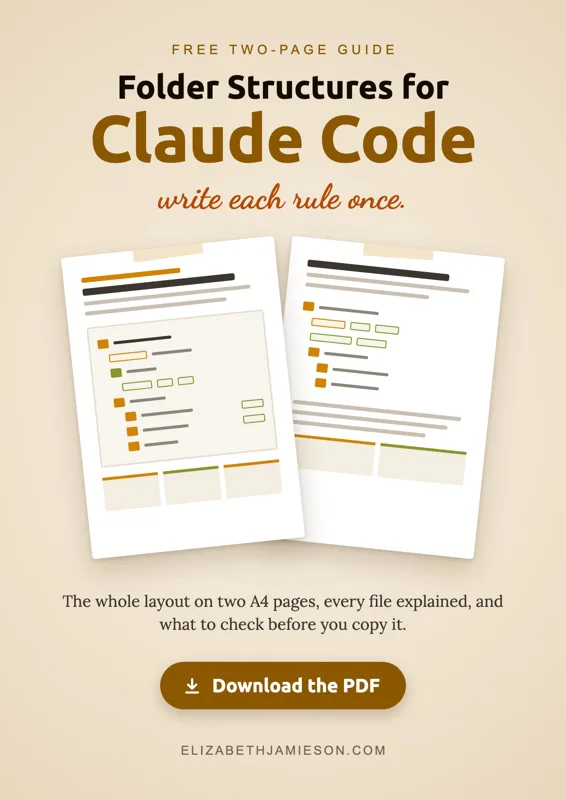 Download the two-page PDF guide (506 KB)
Download it here
The guide gives you the whole layout. Apart from CLAUDE.md, which is the one standard file that Claude Code looks for, the other .md files are my own invention, designed for the way I work.
They may not fit the way you work, so copy the folder structure and create files and rules that reflect your workflow.